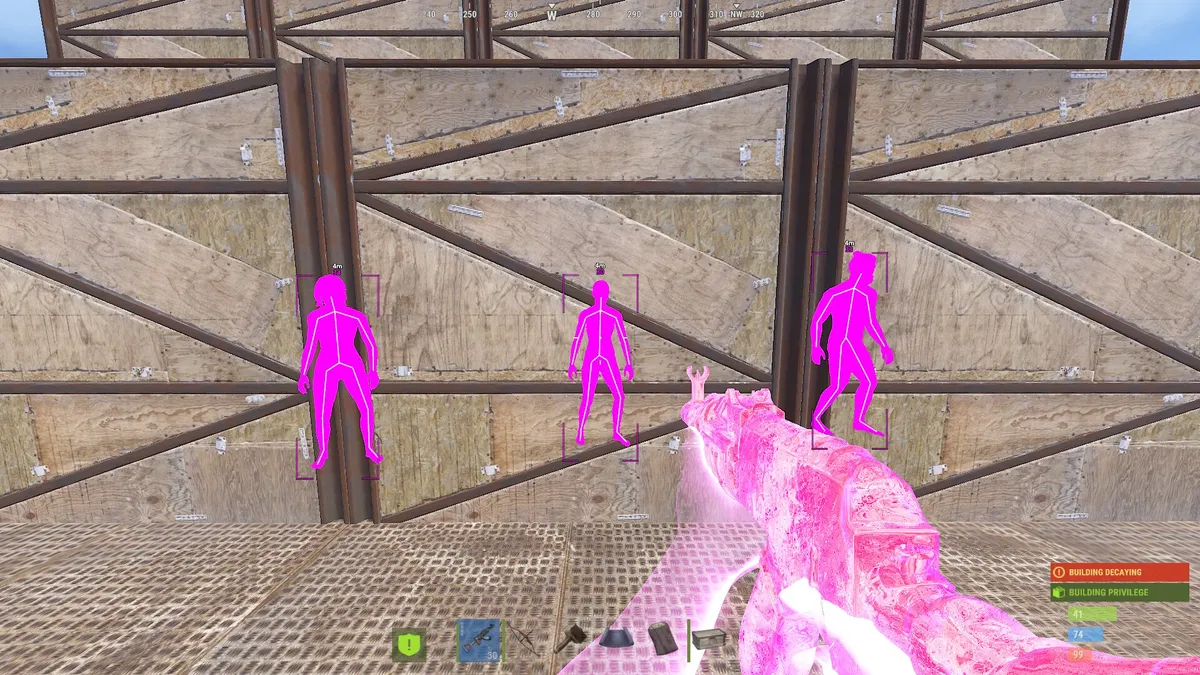
Disconnect Rust External and Internal both contain targeting, weapon and visual controls, but their menus are not identical. This guide uses the named controls in the current Nano product specifications to help you find the setting relevant to your question.
For prices and the available products, open the Rust cheats overview. For a build comparison, read External vs Internal. Settings here are explained by purpose; there is no universal numeric preset or configuration that guarantees account safety.
Match the control name to your build
- Aim point: External calls this Hitbox; Internal calls it Aimbot Bones. Both list Head, Chest, Stomach and Pelvis.
- Targeting area: External lists Draw FOV and Aimbot FOV. Internal lists Draw FOV and Dynamic FOV.
- Player information: External names Show Teammates, Show Wounded, Show Sleepers and Show Dead. Internal has ESP Filter, with separate name, distance and held-item display controls.
- Recoil: External names Recoil Amount X and Recoil Amount Y; Internal names Recoil Modifier X/Y.
- Radar: both have distance, marker-size and transparency controls. External names Radar Radius, while Internal lists Radar Auto Scale.
For the full current controls, open the External specification or Internal specification.
FOV, smoothing and target selection
Both products list Memory Aimbot, Silent Aimbot and Smoothing. The aim point, target-selection area and movement control answer different questions. Changing the selected bone does not also define which player groups are eligible.
Keep Draw FOV separate from the targeting configuration: it is the visible indicator. External names Aimbot FOV, while Internal also names Dynamic FOV. Check the scale used by your build before copying a number from another interface.
Internal additionally lists Target Options for wounded players, scientists, sleepers, team and safezone, along with Visible Check. Confirm the targeting condition you need on your chosen build.
Weapon settings have their own controls
External lists Recoil Amount X, Recoil Amount Y and Spread Amount, each with a published 0–100% range. Internal names Recoil Modifier X/Y and Spread Modifier. The shared subject does not establish that their slider values work identically.
Keep weapon adjustments separate while reviewing visual settings. A crowded player label is an ESP problem, and an unreadable radar marker is a radar problem. Changing recoil or smoothing will not rearrange either display.
Example: simplify External's player display
Work through one group at a time:
- Note your current settings before changing them. External lists reusable configs under Settings.
- In ESP, review Show Teammates, Show Wounded, Show Sleepers and Show Dead. Decide which groups you want represented.
- Review Name, Held Item and Distance individually. Keep the labels that answer your question instead of adding them all at once.
- Compare Box and Skeleton separately to see which outline you can read more easily.
- If distant markers are the problem, review Max Player Distance under Other Visuals. If the text itself is hard to read, review ESP Font and ESP Outline under Settings.
Changing one part at a time lets you identify whether the clutter came from player groups, label content, range or text styling. The same exercise applies to Internal, but use its own ESP Filter and named Player ESP controls instead of assuming External's switch labels are present.
World ESP is separate from Player ESP
External's World ESP list names sulfur, metal and stone ore, collectables, deployables, vehicles and several crate types. Internal also lists World ESP groups, including ore, collectables, dropped weapons, backpacks and corpses.
When an ore or crate label is missing, look in the corresponding World ESP group before changing player filters. Likewise, NPC ESP is its own group in both specifications. A single player-distance setting should not be assumed to control every other entity type.
Read radar independently of the scene overlay
External lists Radar Radius, Radar Render Distance, Radar Player Size and Radar Transparency. Internal lists Radar Auto Scale as well as distance, marker-size and transparency controls across its Visuals and Customization groups.
For a radar that is difficult to read, first describe the problem: markers too small, too much background, or an unsuitable displayed range. Then review that named control. Adjusting player labels in the main scene does not explain the radar's configuration, and a larger display does not establish unlimited map coverage.
Save a layout you can recognize
Both specifications list configs. Keep a known layout before experimenting and give later versions names that tell you what changed, such as “fewer player labels.” Use the product's save/load controls and check the result when restoring it.
Config names such as Legit and Rage describe presets. Those names are not evidence of a particular detection outcome. For the reported operational state, use the status page; for installation, open the Rust External setup or Rust Internal setup.
Frequently Asked Questions
Can I copy the same numbers between External and Internal?
Only if the current product instructions confirm the same control and scale. Similar names do not establish that a value has the same effect.
What should I change when the display is cluttered?
Identify the view first: Player ESP, NPC ESP, World ESP or radar. Then review its entity filters, labels and range separately. The External example above shows which named controls belong to each step.
Is there a safe FOV or headshot percentage?
No universal safety threshold is established here. Display settings, aiming values and player statistics cannot guarantee an undetected outcome or account safety.